
Guides
How to use a mascot in your app
You have a mascot, or you are about to make one. Now it needs a place in the product: which screens get it, how big it is, which file each platform wants and how to keep it from getting in the way. This guide answers those with Comet, a corgi astronaut pack made in SVG Mascot, and numbers measured on his real files.
- One pose per app state
- Sizes and files per platform
- SVG · PNG · WebP
Free to try with watermarked previews · Plans from $19/month · Cancel anytime
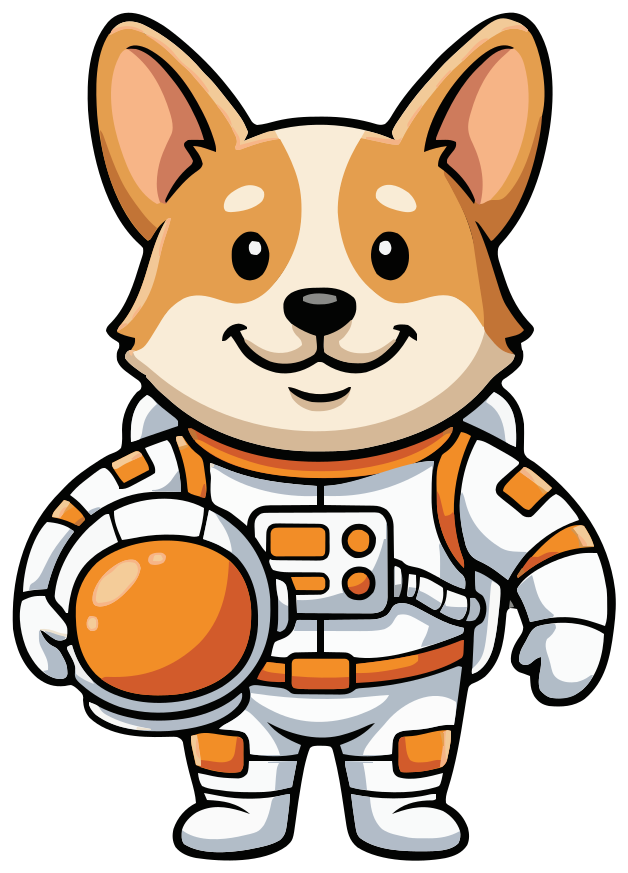
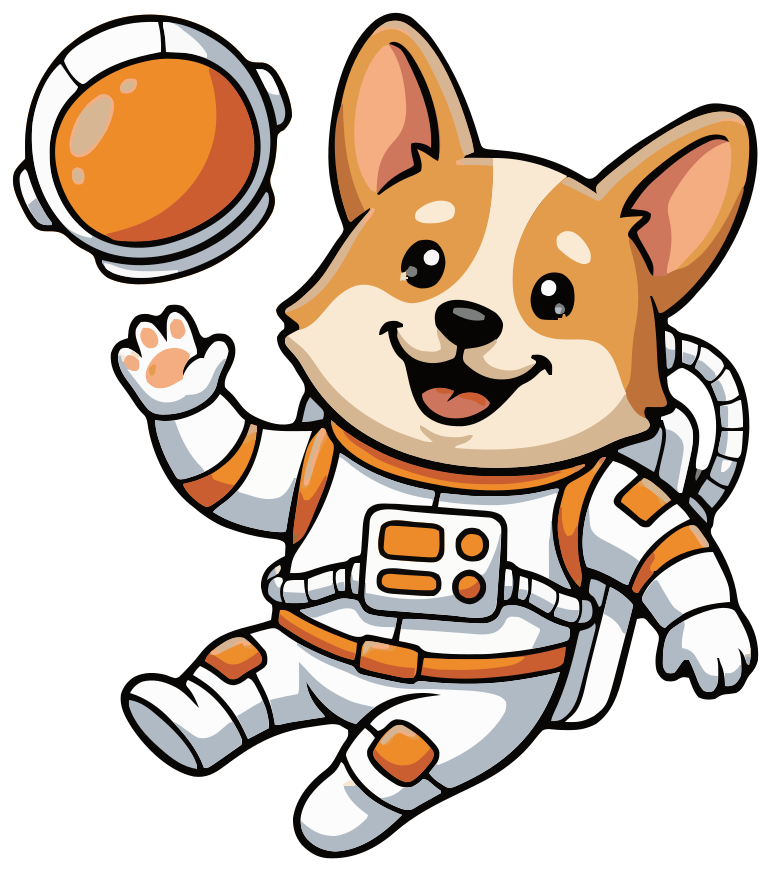
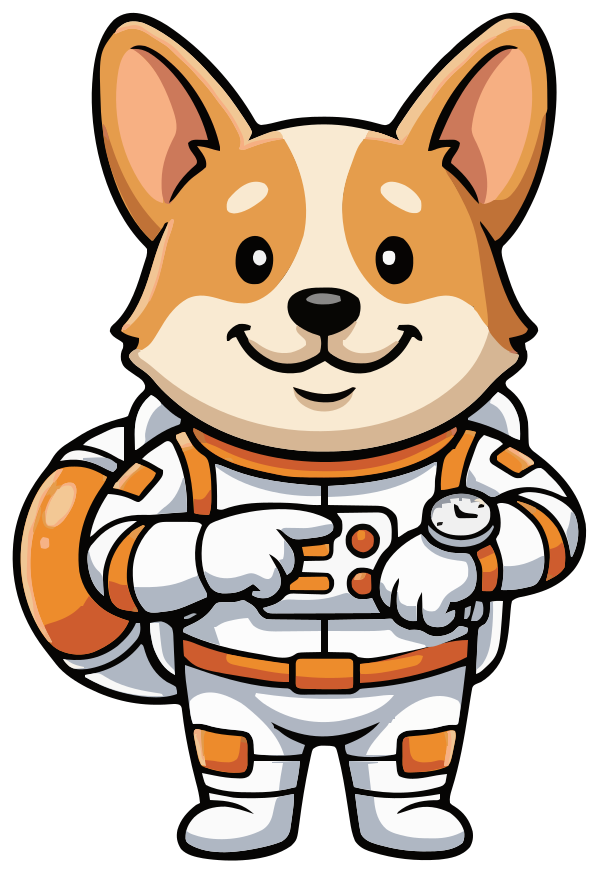
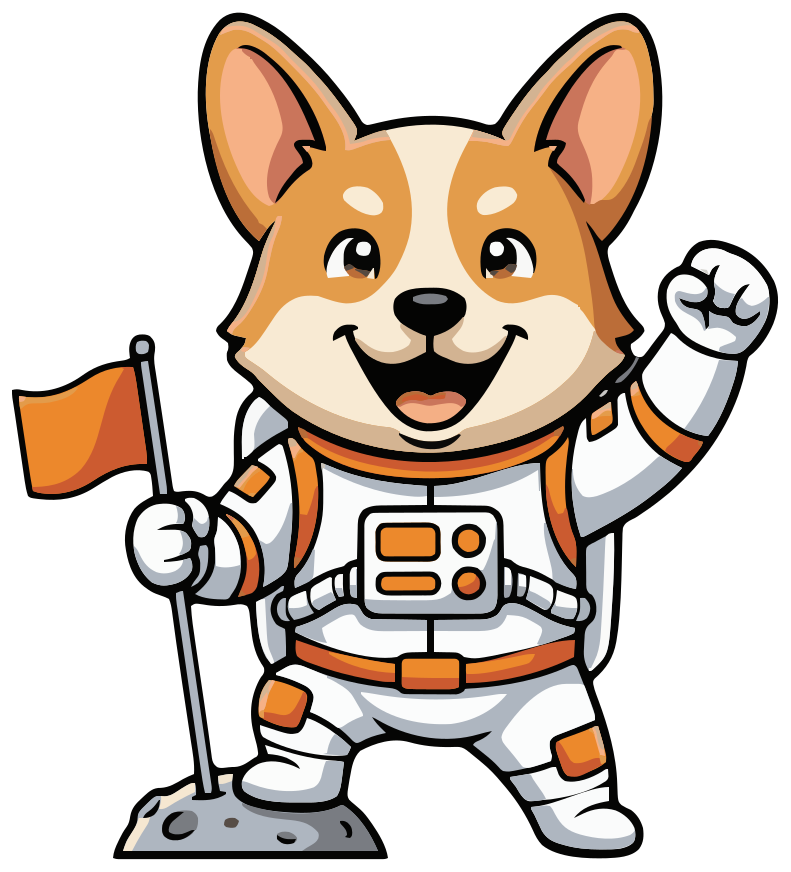
Base
Map each app state to one pose
A mascot earns its place in the moments where a screen would otherwise feel empty, cold or abrupt. Pick those states first, give each one pose, and reuse that pose every time the state comes back. Here is Comet's map:
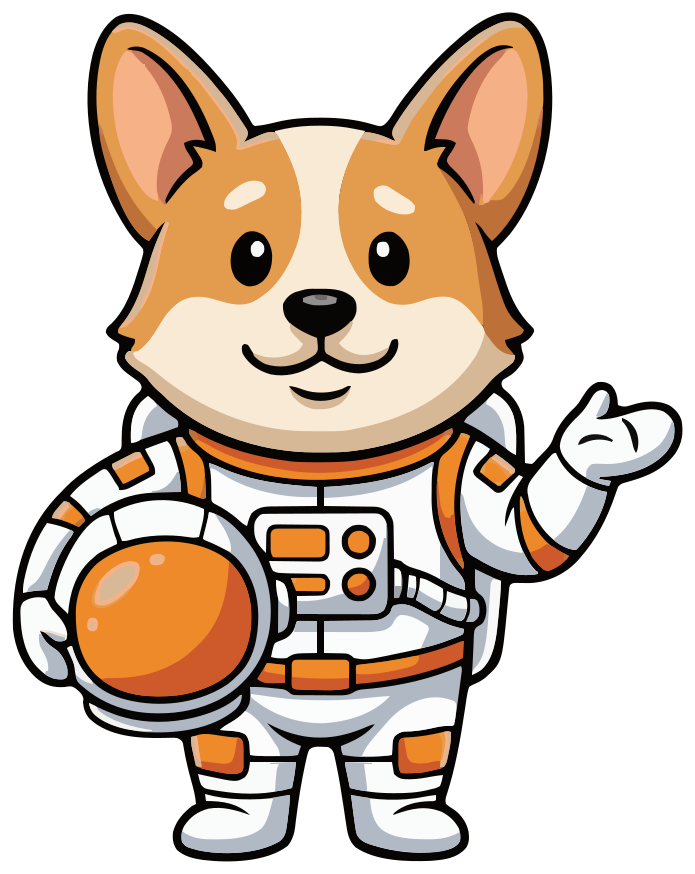
- 1 Onboarding: the waving pose. The first meeting, so it is the friendliest one.
- 2 Empty state: the shrug. A blank list becomes an invitation to add the first item.
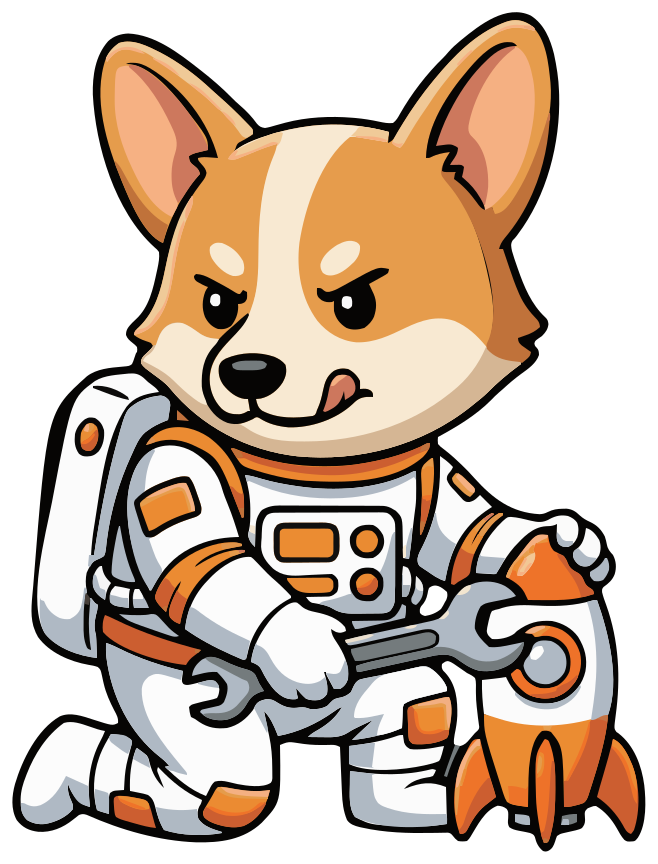
- 3 Error or offline: the wrench. He is fixing something, which says “we know, we're on it” without blaming anyone.
- 4 Success or streak: the flag on the moon, saved for goals that really are goals.
- 5 Permission ask or reminder: the wrist screen, pointing at the thing you want the user to do.
- 6 Waiting: the thinking pose while something loads that takes long enough to notice.
Just as important are the screens that stay plain: forms, settings, checkout, legal text and every row of a list. People are concentrating there, and a character in the way reads as noise. If you can't name the job a pose does on a screen, leave it out.
Mascot sizes by placement
These are starting points, not rules. Sizes are in points (iOS) or density-independent pixels (Android), so they look the same on every screen density; on the web, CSS pixels work the same way.
- Onboarding hero: about 160 to 240. The mascot is the main thing on the screen, with a headline and one button under it.
- Empty state: about 96 to 160. Big enough to read the pose, small enough that the message and the action stay the focus.
- Inline toast, notification or chat avatar: 32 to 48. At this size a full-body character is a few pixels wide, so use a head-and-shoulders pose like Comet's thinking one.
- App icon: a separate, simplified mark. The face or the head alone, drawn to sit in a square, not the full character shrunk down.
Test each pose at its real size on a real phone before you commit. A prop that reads at 200 points can turn into a smudge at 96.
Pair the pose with the copy
The mascot sets the tone; the text still does the work. Every screen with a mascot needs words that say what happened and what to do next, as if the picture were not there. Some people won't see it, and the rest won't stop to decode it.
Take an error. Comet with his wrench and the headline “Oops!” tells the user nothing. Comet with “We couldn't save your mission”, a line saying “Your changes are still on this phone. Check your connection and try again.” and a Try again button tells them everything, and the wrench makes it feel less like their fault. The pose matches the message: a cheering mascot on an error screen reads as mockery.
Mascot files for iOS, Android, Flutter, React Native and the web
Every pose downloads as SVG, high-resolution PNG and WebP. Which one you ship depends on the platform:
- Web: an <img> tag pointing at the SVG is the simplest and is cached like any image. Paste the SVG inline instead when you need your page's CSS to reach the shapes, for example to change a fill color or animate one part.
- iOS: drag the SVG into an asset catalog. Xcode 12 and later accept SVG image assets and keep them as vectors for iOS 13 and later. Tick Preserve Vector Data in the Attributes inspector so the image redraws sharply when you show it at a size other than its own.
- Android: import the SVG with Android Studio's Vector Asset Studio (New › Vector Asset, Local file), which converts it to a VectorDrawable. It supports most of Tiny SVG 1.2 but not text, filter effects or pattern fills, and it warns you about anything it can't convert, so check the result. Android's docs recommend keeping vector drawables to 200 × 200 dp or less, because big ones take longer to draw; for a larger onboarding hero, ship the PNG or WebP in density folders (1× to 4×) instead.
- Flutter: Flutter's Image widget does not draw SVG. Add the flutter_svg package, list the file under assets in pubspec.yaml and draw it with SvgPicture.asset, which takes a semanticsLabel for screen readers.
- React Native: react-native-svg draws SVG on iOS and Android. To import a .svg file as a component, its docs point to react-native-svg-transformer, which needs a Metro config change.
Comet's files are made only of filled paths: no text, gradients, filters or embedded images, which is the plainest part of SVG and the part every one of these tools handles. They are traced from an image, though, so they have more shapes than a hand-drawn icon, which is why the size limit above matters on Android.
A React empty state with the right alt text
Here the mascot is decorative by default: the heading already says the list is empty, so the image gets an empty alt and screen readers skip it. Pass mascotAlt only when the pose adds something the words don't.
import type { ReactNode } from "react";

type EmptyStateProps = {
  title: string;
  body: string;
  action: ReactNode;
  /** Leave empty when the title says it all. */
  mascotAlt?: string;
};

export function EmptyState({
  title,
  body,
  action,
  mascotAlt = "",
}: EmptyStateProps) {
  return (
    <section className="empty-state">
      <img
        src="/mascots/comet-shrug.svg"
        alt={mascotAlt}
        // VoiceOver can skip SVG images without role="img".
        role={mascotAlt ? "img" : undefined}
        width={128}
        height={161}
      />
      <h2>{title}</h2>
      <p>{body}</p>
      {action}
    </section>
  );
}
The width and height match the file's own proportions (695 × 874), so the browser reserves the space and nothing jumps when the image arrives.
The same empty state in SwiftUI
With the shrug pose in the asset catalog as comet-empty and Preserve Vector Data on, resizable() lets it redraw at the frame you give it. Image(decorative:) keeps VoiceOver from reading it; use Image("comet-empty") with .accessibilityLabel when the pose carries meaning.
import SwiftUI

struct EmptyMissionsView: View {
    var body: some View {
        VStack(spacing: 16) {
            Image(decorative: "comet-empty")
                .resizable()
                .scaledToFit()
                .frame(width: 128)
            Text("No missions yet")
                .font(.title2.bold())
            Text("Add your first mission and Comet will keep you on track.")
                .multilineTextAlignment(.center)
                .foregroundStyle(.secondary)
            Button("New mission") {
                // Show the new-mission sheet.
            }
            .buttonStyle(.borderedProminent)
        }
        .padding()
    }
}
Accessibility
- Decorative mascot, empty alt. On the web that is alt="" (or aria-hidden="true" on inline SVG); in SwiftUI, Image(decorative:); on Android, a null contentDescription.
- A mascot that carries meaning gets a short description of what it shows, like “Comet fixing a rocket”, not “mascot image”.
- Never put the only instruction inside the picture. Our mascots draw no text, and any text you add to the art is invisible to screen readers and can't be translated.
- If you animate a pose, respect the reduced-motion setting (prefers-reduced-motion on the web, Reduce Motion on iOS, the system animation setting on Android) and keep it still for those users.
Dark mode
Comet's outlines are near-black, six shades of it in the waving pose, from #060504 to #0D0C0B. We drew that pose on a dark navy background to see what happens: the outline melts into the background, and the white suit and orange fur are left to carry the shape. Comet still reads, because he is mostly light, but he looks softer and flatter than on a light screen. A darker character would lose more. Test every pose on your darkest surface before you ship.
The easy fix is a soft light card or circle behind the mascot, so it keeps the kind of background it was drawn for. It needs no new files and works for every pose.
A recolored variant takes more care. We tried replacing all six near-black shades with a light gray: the outline turned light, but so did the eyes, the nose and the mouth line, because they are drawn in the same shades. The outline is not a separate layer. To make a dark variant, open a copy in a vector tool, select only the outer outline shapes, recolor those and leave the face alone, then switch files with the theme.
Performance: what a mascot costs
We measured two of Comet's files as they are served on this site. The waving pose is 91 KB, 34 KB gzipped, with 211 shapes. The shrug is 72 KB, 27 KB gzipped, with 164. We read the byte length of each file with Node and compressed it with Node's zlib at the default gzip level, roughly what a web server sends; 1 KB is 1,024 bytes.
Neither is huge, but a screen with three poses adds up, so load them like any other image:
- Lazy-load anything below the fold with loading="lazy", and give it a width and height.
- Preload the onboarding pose, the one people see first, with <link rel="preload" as="image"> or fetchpriority="high" on its <img>.
- Serve SVG with compression on. It is text, and both files shrink to under 40% of their size.
- In a native app the files ship in the bundle, so there is no download, but every pose adds to the app size. Ship the poses you use, not the whole pack.
How often to show the mascot
Use the mascot as punctuation, not wallpaper. It should mark the moments that change something for the user: the first launch, an empty list, an error, a goal. If it is on every screen, people stop seeing it, and the pose that should mean “something went wrong” loses its weight.
A good test: open the app and do the five things people do most. If the mascot appeared more than once or twice and none of those times was a change of state, take some out.
FAQ
Mascot in your app questions
Should I use SVG or PNG for a mascot in my app?
SVG for the web, iOS asset catalogs, Flutter and React Native, and for Android at sizes up to about 200 dp. PNG or WebP for large Android illustrations, store screenshots, email and anywhere that doesn't take SVG. Every pose comes in all three formats, so you can mix them.
Can I animate the mascot?
Not out of the box: SVG Mascot exports still files, one per pose, with no animation. Simple motion such as a bounce, or a fade from one pose to the next, takes a few lines of CSS or your platform's animation API. For a character that moves its arms or talks, rebuild it in an animation tool and use the SVG as the starting artwork.
How many poses does an app mascot need?
One for each state that gets a mascot, usually four to six: welcome, empty, error, success, and perhaps a reminder and a waiting pose. The hero above shows six of Comet's poses plus the base. Start with the states people see most and add more later; each new pose is drawn from the same locked base, so it stays the same character.
Will a mascot slow my app down?
Not if you load it with care. The two Comet poses we measured, the shrug and the wave, are 72 and 91 KB as SVG, 27 and 34 KB gzipped. Lazy-load the ones below the fold, preload the onboarding pose, and on Android use the PNG or WebP above about 200 dp, where Android's docs advise against large vector drawables.
Can my mascot be the app icon?
Yes, as a simplified version. App icons are square and tiny on the home screen, so a full-body character with a prop gets lost. Ask for a head-and-shoulders or face-only variation and place it on a solid background in your design tool.
See the mascot logo guide Can I use the mascot from the free plan in my app?
No. The free plan gives you 3 drafts, 3 variations and 1 base mascot as watermarked previews, so you can see the character before you pay. Downloading the SVG, PNG and WebP to put in your app needs a paid plan, including for mascots you made for free.
See plans and credit costs